

Your fitness tracker fails to record steps most often because of a loose wrist fit, a software glitch, or a sensor that has become blocked by debris. When the device can’t detect the rhythmic motion of your arm while walking, it stops counting your movement, though you can usually restore accuracy by tightening the band or restarting the internal operating system.
Why Your Fitness Tracker Stops Tracking Steps
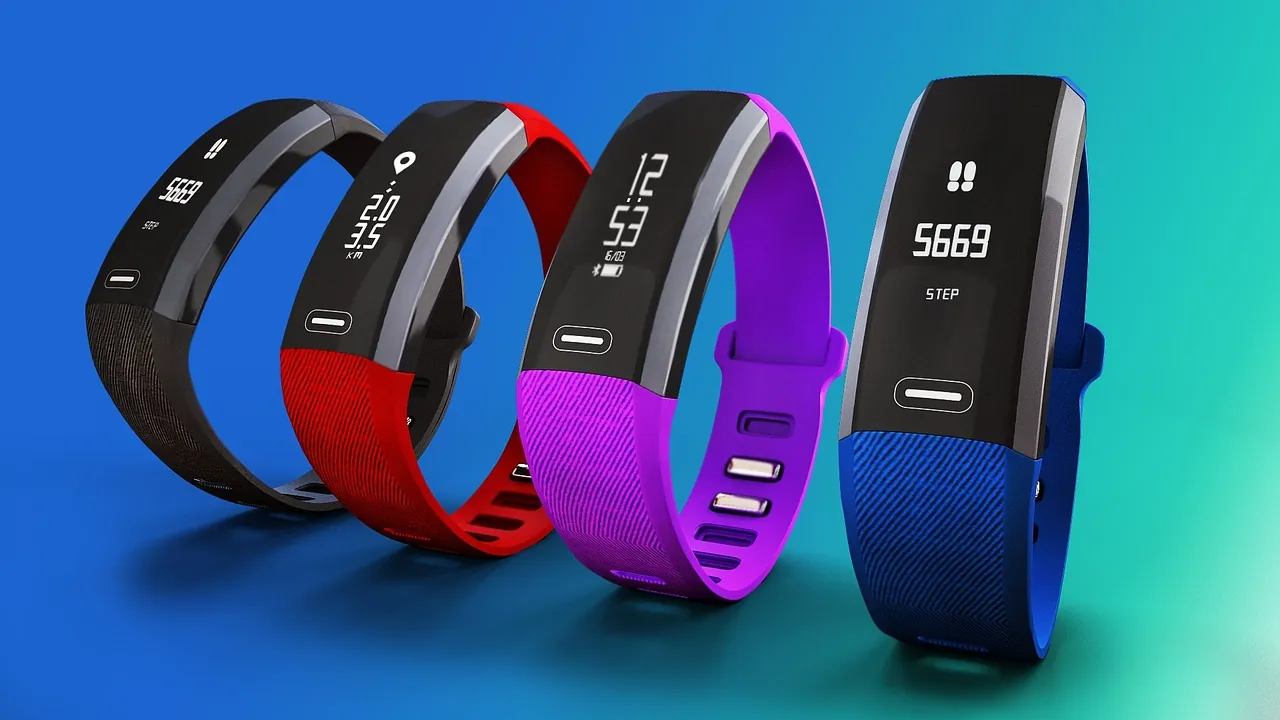
You can usually identify why your device stopped logging activity by checking these common issues in order of how often they occur.
If the band moves too freely, the sensor can’t detect the specific vibrations of your stride. Tighten the strap so it sits firmly against your skin without cutting off circulation. You should only be able to slide one finger between the band and your wrist.
A temporary hang in the internal firmware often prevents data from updating or logging. Restarting the unit forces the operating system to reset its background processes. If the screen remains unresponsive, hold the power button for ten full seconds to trigger a hard reboot.
Sweat, lotion, or dead skin cells can block the optical window on the back of the device. Gently wiping the glass with a soft, damp cloth often clears the path for the light-based sensors. Avoid harsh chemicals or paper towels, which can scratch the delicate lens and permanently degrade tracking accuracy.
Some trackers require a continuous, brisk pace for at least ten seconds before they begin counting. If you’re walking very slowly or carrying objects that keep your arm stationary, the device may ignore the movement. If you carry a heavy bag, switch the tracker to your opposite wrist to restore natural arm swing.
Outdated software can cause erratic behavior in the accelerometer. Checking the companion application on your phone for pending updates is a quick way to rule this out.
| Symptom | Most Likely Cause | What to Do |
|---|---|---|
| Zero steps recorded | Loose strap | Tighten the band by one notch |
| Steps update randomly | Software glitch | Restart the device |
| Inaccurate low count | Dirty sensor | Clean the back glass |
| No data on phone | Sync failure | Toggle Bluetooth off and on |
Simple Checks You Can Perform Safely
Before assuming the hardware is broken, perform these basic adjustments to see if the device begins tracking again. First, ensure the device is charged above 20 percent, as many units disable advanced sensor features like continuous tracking when the battery is critically low. If the screen is unresponsive, place the device on its charger for 30 minutes to ensure it isn’t simply in a deep sleep mode.
Check your application settings to ensure that the device is correctly assigned to your wrist and that “Step Tracking” or “All-Day Activity” is toggled to the on position. Many users accidentally switch their tracker into a “Sleep” or “Do Not Disturb” mode, which limits sensor sensitivity. If you find the device is tracking steps but not showing them in your app, force-close the app on your smartphone and reopen it to trigger a fresh data handshake.
If your device uses an optical heart rate sensor, look for a faint green light glowing against your skin. If the light is absent, the device has lost contact with your pulse and will stop counting steps entirely to preserve battery. Adjust the strap so it sits one finger-width above your wrist bone. If the strap is too loose, the sensor can’t distinguish between your movement and ambient light, leading to a zero-step count.
If the device still fails to register movement after a restart, try wearing it on your opposite wrist for one hour. If it tracks correctly there, your dominant arm’s specific movement patterns may be too erratic for the algorithm. In that case, manually adjust the sensitivity settings in your profile to “low” to filter out false motion.
When to Seek Professional Support

Deciding whether to repair or replace your tracker depends on the age of the unit and the nature of the fault. If the device is less than a year old and you have already tried a factory reset, the problem likely stems from a hardware defect in the internal accelerometer rather than a user error. In these cases, contact the manufacturer’s support team immediately to verify your warranty status.
Never attempt to open the casing to fix internal components. These devices are sealed at the factory to maintain water resistance. Breaking that seal renders the device vulnerable to moisture and often severs the delicate ribbon cables inside, which are impossible to reconnect without specialized equipment.
If the screen is cracked or the device has suffered water damage, a professional repair usually costs nearly as much as a new unit. If the device is out of warranty and continues to fail after a full reset, replacing it’s the most cost-effective path. Most third-party repair shops refuse these jobs because the labor required to access micro-soldered parts exceeds the retail value of the tracker.
If you rely on your data for medical monitoring, don’t wait for a second failure. A device that intermittent-syncs or drops heart rate readings during exertion is a liability. Replace it immediately rather than risking a gap in your health records.
Frequently Asked Questions
Will walking with my hands in my pockets prevent my tracker from counting steps?
Yes, because most trackers rely on the natural swing of your arm to detect the impact of a step. If your arm remains stationary while your legs move, the accelerometer inside the device won’t register the movement as a walking stride.
Do I need to calibrate my fitness tracker for it to be accurate?
Most modern trackers come pre-calibrated, but you can improve accuracy by entering your correct height and weight in the companion app. These details help the device estimate your stride length more effectively based on your physical build and walking speed.
Can a screen protector interfere with my tracker’s sensors?
A screen protector usually doesn’t affect the step-counting sensors, which are located on the back of the device, but it can interfere with touch sensitivity. If you use a thick case or a bulky protector, ensure it doesn’t cover the heart rate or motion sensors on the bottom of the unit.
Conclusion
Start by cleaning the back of your tracker with a slightly damp cloth to remove any accumulated residue. If the issue persists, perform a hard restart through the device settings menu and verify that your app is fully updated to the latest version available.