

You can extend fitness tracker battery life by turning off non-essential features like continuous heart rate monitoring, reducing screen brightness to 30%, and shortening the display timeout duration to 5 seconds. These simple adjustments often allow a standard wearable to last 2 to 4 days longer than using factory-default settings while maintaining your essential activity tracking data.
Ways to extend your fitness tracker battery
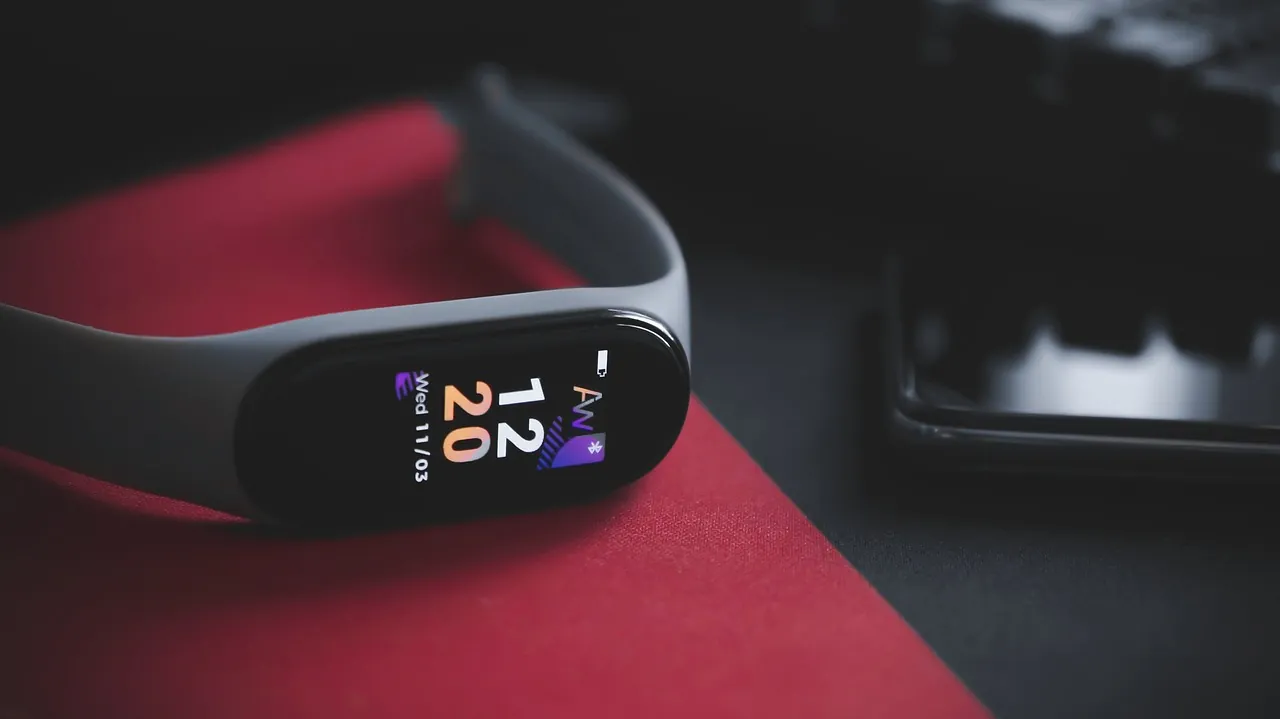
To get the most out of your device, you need to manage how often it communicates with your phone and how much power the screen consumes. Follow these steps to optimize your settings for longer intervals between charges.
Lower screen brightness by moving the slider to the lowest level that remains readable. If you’re outdoors, keep it at 30 percent; indoors, 10 percent is usually sufficient.
Shorten the display timeout to 5 seconds. Every extra second the screen stays active drains battery life exponentially. If you find the screen goes dark too quickly during workouts, toggle this setting back to 10 seconds only when you’re actively training.
Switch your heart rate sensor from “always on” to “on demand.” Continuous tracking is the single largest battery drain. Use this mode for daily wear, but switch back to continuous monitoring only when you need precise data for high-intensity interval training.
Limit background notifications to essential apps. Each vibration alert forces the haptic motor to engage, which consumes significant power. Disable all social media pings and keep only urgent messaging alerts active.
Turn off “raise to wake.” This feature often triggers accidentally while you move your arms, keeping the screen active for hours. Force yourself to tap the glass to check the time.
Restrict GPS usage to outdoor workouts only. Constant location polling will deplete a full charge in under four hours. If you’re walking in a familiar neighborhood, keep GPS off entirely.
Sync data manually instead of allowing a constant background connection. Constant Bluetooth handshakes prevent your device from entering a low-power sleep state. Syncing once every evening saves roughly 15 percent of your daily battery capacity. If your device loses connection, toggle your phone’s Bluetooth off and on to reset the handshake.
Expected Battery Gains by Feature
Different features drain power at varying rates depending on your hardware. Using this table, you can identify which settings impact your specific device most significantly during a typical day of use.
| Feature Setting | Impact on Battery Life | Recommended Adjustment |
|---|---|---|
| Always-on Display | High drain | Disable entirely |
| Continuous Heart Rate | High drain | Set to periodic or manual |
| Brightness (Max) | Medium drain | Set to 30% or Auto |
| GPS Tracking | Very high drain | Only use for workouts |
| Notification Alerts | Low drain | Keep to essential apps only |
The primary mistake users make is assuming all high-drain features scale linearly with use. In reality, GPS tracking consumes roughly 15% of total capacity per hour, regardless of other background tasks. If your battery drops by more than 5% while the device sits idle, the culprit is almost certainly a rogue background sync rather than a display setting.
Apply this rule: if you need to extend your charge by four hours, prioritize disabling GPS and heart rate monitoring first. If you only need an extra hour, simply lowering your screen brightness to 30% is sufficient.
You can distinguish between hardware failure and software drain by checking your battery usage menu. If a system process occupies more than 20% of your total consumption, restart the device to clear the cache. If the top consumer is a specific third-party app, uninstall it to see if your daily drain rate returns to the manufacturer’s baseline.
Common Mistakes That Drain Power Quickly

Many users accidentally exhaust their battery by leaving features active that they rarely use. One of the biggest mistakes is keeping the “always-on” display active, which forces the screen to remain powered even when you aren’t looking at it. This setting alone can reduce your total battery runtime by 50% or more.
Another error involves leaving high-accuracy GPS enabled while indoors or during stationary activities. Your device constantly searches for a satellite signal, which consumes a massive amount of energy while yielding no useful data. If you’re in a building with thick concrete walls, your phone will ramp up its radio power to maximum in a futile attempt to reach a satellite, draining your charge in under four hours.
Check your location settings before you leave your desk. If the icon shows a solid arrow, your device is actively pinging a tower or satellite. If the icon is hollow, the app is merely checking your last known location.
Don’t ignore firmware updates. Manufacturers often release software patches that improve power management efficiency. Keeping your device current is a simple way to ensure it runs as intended by the Environmental Protection Agency for energy-efficient electronics.
If you’re heading out for a long trip, turn on “power save” or “don’t disturb” mode to automatically silence all incoming notifications and dim the display. If your battery level drops below 20%, disable background app refresh entirely to prevent hidden processes from syncing data while the screen is off.
Frequently Asked Questions
Does vibration for notifications use a lot of power?
Yes, the small motor responsible for vibrations consumes more energy than a simple screen notification. You can save a noticeable amount of power by turning off vibrations for non-essential alerts or disabling them entirely if you prefer to check your phone for messages.
Can I leave my tracker on the charger overnight?
Most modern lithium-ion trackers have built-in circuits that stop charging once the battery reaches 100%. However, keeping a battery at maximum charge for extended periods can eventually degrade its total capacity, so it’s best to unplug it once it’s full.
Why does my battery drain faster in cold weather?
Cold temperatures slow down the chemical reactions inside lithium-ion batteries, which causes a temporary drop in performance. If you’re exercising outside in freezing conditions, keep your tracker covered by a sleeve to help it maintain a stable operating temperature.
Conclusion
Check your companion app once a week to see which features are consuming the most power. If you notice a sudden, sharp decline in your battery life despite these adjustments, try a factory reset to clear out any background processes that might be stuck.
[…] How to Extend Fitness Tracker Battery Life […]
[…] sensors. Most users make the mistake of leaving the pulse oximeter active during sleep, which can drain up to 20% of your battery in a single […]