

Bluetooth audio connection problems are fixed by turning Bluetooth off and back on, unpairing the device, then pairing it again — in that order. Most failures happen because the phone or computer has paired with the wrong device, or because two devices are trying to connect to the same speaker or headphones at once. Move the audio device within three feet of your phone or computer, make sure it’s charged, and try again before anything else.
Why Bluetooth audio connection problems happen
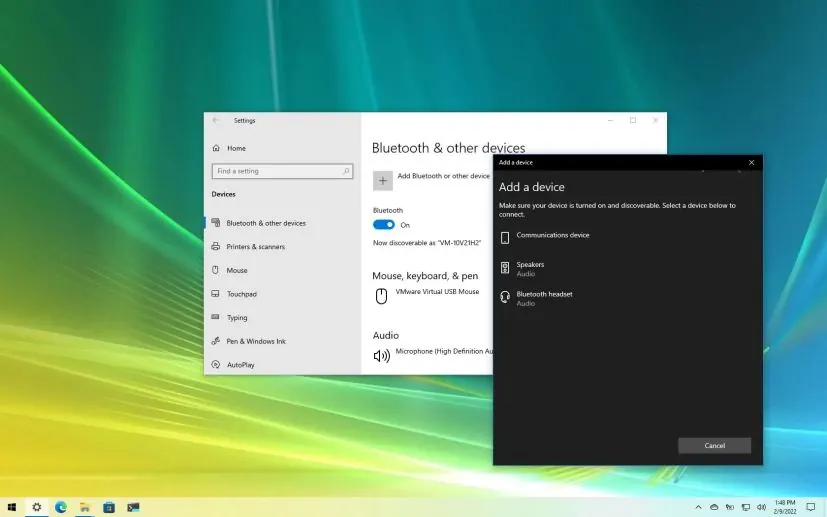
The most common cause is distance. Bluetooth uses short-range radio waves, and walls, doors, or even your body between the phone and the headphones weaken the signal until the audio cuts out.
Think of the signal as a line of sight. If your phone is buried deep in a backpack or a thick leather pocket, the signal struggles to penetrate the density of those materials. Moving the device to an outer pocket or holding it in your hand often restores the stream instantly.
The second cause is interference from other wireless devices on the same frequency, such as Wi-Fi routers, microwave ovens, or baby monitors. These devices create a “noise floor” that drowns out the subtle Bluetooth handshake. If you’re in a crowded office or a home with many smart devices, the airwaves become congested, causing the audio to stutter or drop entirely.
A third cause is that the audio device is already connected to another phone, tablet, or laptop and won’t accept a new connection until that first link is cleared. Many modern headphones prioritize the last device they touched, meaning they might be silently tethered to a tablet in another room.
Battery level also matters. When a speaker or headset runs low, it may disconnect to save power, prioritizing basic functionality over maintaining a high-fidelity stream. Software bugs in the phone’s operating system or in the headphones’ own firmware can also break the link, which is why updates often clear the problem. These are ordinary causes, not faults in your equipment, and none of them require opening anything.
Turn Bluetooth off and on again
This fix is for anyone whose audio suddenly cuts out or whose device won’t reconnect after it worked before. Open your phone or computer’s Bluetooth settings, switch Bluetooth off, wait ten seconds, and switch it back on.
Then select your headphones or speaker from the device list and wait for the “connected” message. Play a song or a video to confirm the sound comes through the Bluetooth device and not the phone’s own speaker.
If the audio returns and stays steady, the problem was a temporary software hiccup and you’re done. This simple toggle forces the Bluetooth radio to drop its current handshake and request a fresh authorization from your peripheral.
It clears out minor cache errors that prevent the device from recognizing the secure link it previously established. By forcing this refresh, you often bypass the need for more invasive troubleshooting steps.
If it cuts out again within a minute, move to the next fix. This step takes under a minute and needs no special tools.
If you find that the connection drops only when you move your phone to a different pocket, the issue may be physical obstruction rather than software. In that case, toggling the setting won’t provide a lasting fix, and you should focus on the distance between your devices.
Unpair and pair the device again
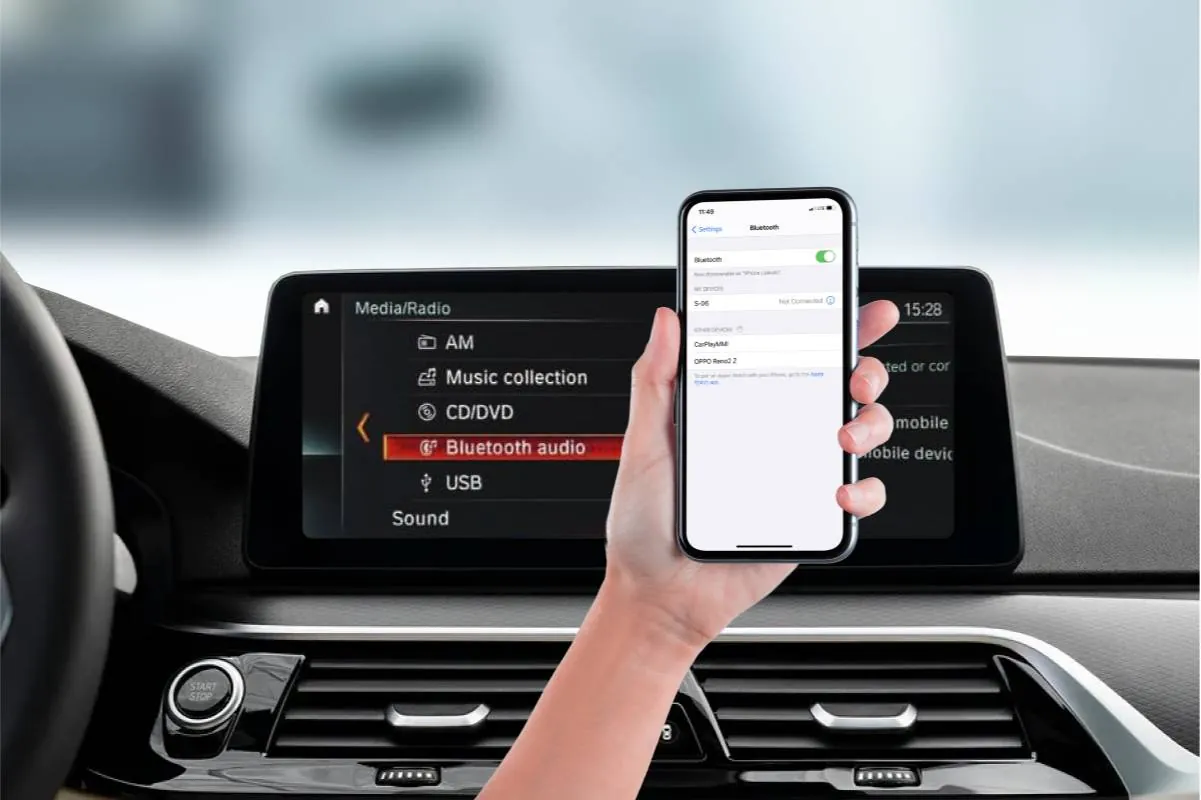
This is a different kind of fix: it clears the old connection entirely and starts fresh. Go to your Bluetooth settings, find your headphones or speaker in the list of paired devices, and choose “Forget this device” or “Remove.”
Then put the audio device back into pairing mode—usually by holding its power or Bluetooth button until a light flashes—and select it from your phone’s device list again. Once it says connected, play something to check the sound.
Use this when the device appears in the list but won’t connect, or when it connects to the wrong phone. This process forces the hardware to exchange new security keys, effectively wiping out any corrupted handshake data that might be causing a persistent communication stall between your devices.
It works on phones, tablets, and laptops alike. If the device won’t enter pairing mode, its battery may be too low; charge it for a while before trying again.
If you have multiple devices nearby, turn off their Bluetooth temporarily while you perform this reset. This prevents the audio device from accidentally grabbing a connection with a nearby tablet or computer instead of the phone you’re currently trying to pair.
Finally, check your device’s companion app if you use one. Sometimes, the app keeps a secondary internal record of the connection that needs to be cleared alongside the system settings to ensure a completely clean slate.
Reset the audio device itself
This is the fix for harder cases: when unpairing doesn’t work, or when the headphones connect but play no sound at all. It’s worth the extra effort only after the first two fixes have failed, because resetting erases every saved device and you’ll have to pair your phone, tablet, and laptop all over again.
Look for the reset instructions on the device or in its manual. Often, it means holding the power and volume buttons together for ten seconds until a light flashes. Some models require you to hold the pairing button while the device is plugged into a charger. Check the manufacturer’s website if you no longer have the paper guide.
A reset clears the internal cache that stores connection handshakes. Sometimes, these files become corrupted after an OS update on your phone, causing the device to “remember” a connection protocol that no longer functions correctly. By wiping the memory, you force the hardware to negotiate a fresh, clean link from scratch.
After the reset, pair your phone as if the headphones were brand new. If the audio still cuts out after a full reset, the problem may be inside the headphones or in your phone’s Bluetooth hardware.
At this point, the issue is likely a physical failure of the internal antenna or the Bluetooth chip itself. That’s the moment to contact the maker’s support or a repair shop rather than keep trying settings. If the device remains unresponsive after a factory reset, it’s almost certainly a hardware defect that no software adjustment can resolve.
Advice that makes Bluetooth worse
Keeping the phone in a pocket or bag while the headphones are in another room creates a physical barrier. Walls and your own body block the short-range signal, forcing the connection to struggle. This interference causes the audio to stutter or cut out completely as the device fights to maintain a handshake.
Leaving Bluetooth enabled on many paired devices at once creates a conflict of interest. The headphones may attempt to establish a link with an old laptop or tablet nearby instead of the phone you’re currently using. This background handshake forces your active device to constantly compete for priority, leading to frequent, unexplained drops.
Charging the phone and playing Bluetooth audio at the same time near an active microwave creates invisible chaos. Both devices operate on the same 2.4 GHz wireless frequency, causing the microwave to drown out your audio signal. If your audio begins to crackle only when you’re in the kitchen, this frequency overlap is the likely culprit.
Ignoring a low battery on the headphones is a common oversight. Below a certain charge, many models intentionally drop their wireless connection to save power for basic functions. This looks like a connection fault, but it’s actually a protective measure. If your audio cuts out consistently after an hour of use, check the battery level before assuming the hardware is failing.
Keep the connection steady
One lead sentence: change what you’re doing so the link stays strong.
| If you’re doing this | Do this instead | Why |
|---|---|---|
| Leaving the phone across the room | Keep the phone within three feet of the headphones | Bluetooth range drops fast behind walls and doors |
| Letting the headphone battery run low | Charge the headphones before they drop below twenty percent | Low power makes many models disconnect on their own |
| Pairing with five or more devices | Unpair devices you no longer use | The headphones may connect to the wrong one |
| Using Bluetooth next to a microwave | Move away from the microwave while on a call | Both use the same frequency and interfere |
| Never updating the headphone firmware | Install updates from the maker’s app | Updates fix known Bluetooth bugs |
Related guides
Frequently asked questions
Can I fix Bluetooth audio without resetting anything?
Yes. Start by turning Bluetooth off and on again, then move the phone within three feet of the headphones. That clears most temporary faults without erasing any saved devices.
Why does my Bluetooth speaker connect to the wrong phone?
It’s probably still paired with another phone nearby and connects to that one automatically. Turn Bluetooth off on the other phone, or unpair the speaker from it, then pair it with the phone you want to use.
How long should I wait after turning Bluetooth off before turning it back on?
Wait ten seconds. That gives the phone’s Bluetooth radio enough time to fully shut down before it starts searching again.
Is it safe to leave Bluetooth on all the time?
Yes. Leaving Bluetooth on doesn’t damage your phone or headphones, though turning it off when you aren’t using it can save a small amount of battery.
What happens if I reset my headphones?
Every paired phone, tablet, and laptop is erased from its memory. You’ll have to pair each device again from scratch, so only reset after the simpler fixes have failed.
How often should I charge Bluetooth headphones?
Charge them before the battery gets low, since many models disconnect automatically to save power when the charge runs down. How often that happens depends on the model and how long you use them each day.
Can a Wi-Fi router cause Bluetooth to cut out?
Yes. Wi-Fi and Bluetooth share the same wireless frequency, so a router close to your phone or headphones can cause brief dropouts. Moving a few feet away usually fixes it.
Conclusion
Bluetooth audio problems are almost always caused by distance, interference, or an old pairing, not by broken hardware. Try the off-and-on fix first, then unpair and re-pair, and only reset the device if those fail. If the sound still cuts out after a full reset, contact the headphone maker’s support team — that’s when it stops being something you can fix from the settings menu.